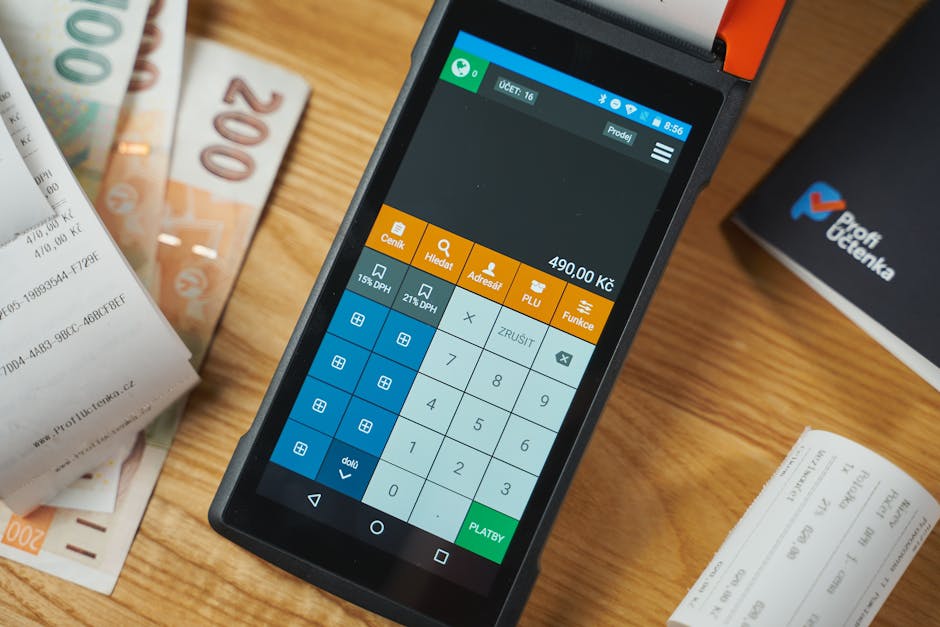
Choosing the right hardware for your restaurant POS system is one of the most consequential decisions you will make when opening or upgrading your operation. Get it wrong and you are locked into expensive proprietary gear, saddled with maintenance contracts, and paying for replacements at inflated vendor prices. Get it right and you have a flexible, scalable setup that grows with your business — one you can maintain yourself and replace with off-the-shelf parts.
This guide covers every major hardware category: order-taking terminals, receipt printers, kitchen printers, kitchen display systems (KDS), cash drawers, card readers, and networking. We include real-world pricing, a comparison of proprietary vs open hardware, and specific recommendations for restaurants of every size — from a single food truck to a multi-location full-service chain.
KwickOS runs on any modern browser-capable device — iPad, Android tablet, Windows touchscreen, or any web-capable terminal. You are never forced to buy proprietary hardware from a vendor at marked-up prices. Bring your own devices and save thousands.
1. The Hardware vs. Software Decision
Before evaluating individual components, you need to understand the fundamental split in the POS market: closed, proprietary systems vs. open, browser-based systems.
Proprietary systems like older versions of Aloha, Micros (Oracle), and Revel bundle their hardware and software together. You buy their terminals, their printers, their card readers — and if any component breaks, you call their support line and pay their prices. Monthly software fees run $200–$700/month on top of hardware costs that can exceed $15,000 for a mid-size restaurant.
Browser-based systems like KwickOS flip this model. The software runs on any device with a modern browser — a $200 Android tablet, a $600 iPad, a $350 Windows all-in-one, or even a repurposed laptop. You source your own peripherals from Amazon, your local electronics store, or a refurbisher. When something breaks, you replace it yourself in minutes.
| Factor | Proprietary POS Hardware | Open / Browser-Based (KwickOS) |
|---|---|---|
| Upfront hardware cost | $8,000–$20,000+ | $1,500–$5,000 |
| Terminal replacement | Vendor-only, 2–4 weeks lead time | Any store, same day |
| Software lock-in | Yes — hardware tied to vendor | No — switch systems anytime |
| Upgrade path | Vendor upgrade cycle (3–5 yrs) | Upgrade devices on your schedule |
| Offline capability | Varies (often limited) | Full offline mode built in |
| Repair cost | $150–$400/hr labor + parts | Self-service or any IT shop |
| Multi-location scaling | New hardware kit per location | Add devices, no new licenses |
2. Order-Taking Terminals: Tablets vs. Fixed Stations
The order-taking terminal is the heart of your POS hardware stack. This is where servers enter orders, managers pull reports, and hosts manage reservations. You have three broad options: consumer tablets, purpose-built all-in-one touchscreens, and traditional fixed-mount proprietary terminals.
iPad (Apple)
The iPad remains the most popular choice for independent restaurants and small chains. The 10th-generation iPad starts at $349 and offers a bright, responsive 10.9-inch display. Combined with a rugged case (Otterbox Defender: ~$60) and a countertop stand (Heckler: $120–$180), you have a complete terminal for under $650. The iPad handles heat and kitchen humidity well when paired with a case, and Apple's long software support cycle means your hardware stays useful for 5–7 years.
Android Tablets
Android tablets offer more pricing flexibility. The Samsung Galaxy Tab A9+ ($280) delivers solid performance for POS use, while commercial-grade options like the Lenovo Tab M10 Plus are available in bulk for under $200/unit. Android also allows more customization — you can lock devices into kiosk mode, disable the home button, and configure automatic restarts, all without MDM software fees.
Windows All-in-One Touchscreens
For a fixed counter station, a Windows all-in-one touchscreen in the 15–22 inch range offers the best screen real estate and peripheral compatibility. Models from Elo, Posiflex, and Acer run $350–$900 depending on processor and screen size. These integrate cleanly with USB receipt printers, cash drawers, and barcode scanners — all standard Windows devices. KwickOS runs in any Chromium-based browser on Windows, so setup takes minutes.
Proprietary Terminals
Legacy proprietary terminals (Micros Workstation 6, PAX S series, Aloha NP) are purpose-built for restaurant environments — waterproof bezels, fanless design, wide operating temperature range — but they are expensive, vendor-locked, and increasingly obsolete. Unless you are inheriting existing infrastructure, we recommend avoiding them for new deployments.
| Terminal Type | Price Range | Screen Size | Best For | KwickOS Compatible |
|---|---|---|---|---|
| iPad 10th Gen | $349–$649 (with stand) | 10.9" | Tableside, counter | Yes |
| Samsung Galaxy Tab A9+ | $280–$480 (with stand) | 11" | Budget counter, kiosk | Yes |
| Windows All-in-One (Elo) | $500–$900 | 15"–22" | Fixed counter, bar | Yes |
| Chromebook / Chromebox | $200–$500 | 11"–24" | Light use, back office | Yes |
| Proprietary (Micros, Aloha) | $1,500–$3,500/unit | 15"–17" | Legacy environments | No |
Buy one extra tablet per location as a hot spare. At $280–$350, the cost is trivial compared to the downtime of a terminal failure during a Saturday dinner rush. Store it charged in the back office and swap it in within two minutes.
3. Receipt Printers
The receipt printer is the peripheral most likely to cause service disruptions. Paper jams, faded print heads, overheating — these are daily realities in busy restaurants. The good news is that thermal receipt printers have become a mature commodity market, with reliable units available for $150–$350.
Thermal vs. Impact Printers
Nearly all modern receipt printers are direct thermal, meaning they use heat-sensitive paper rather than ink ribbons or toner. This eliminates ink costs and reduces maintenance, but thermal paper can fade in direct sunlight and heat. For kitchen environments where grease and heat are factors, impact printers (dot matrix) are still used for kitchen tickets because they print on plain paper unaffected by heat — though they are louder and slower.
Connectivity: USB, Ethernet, or Bluetooth?
Ethernet is the gold standard for receipt printers in any restaurant doing meaningful volume. An Ethernet-connected printer appears on your local network and any terminal can send to it — no cable runs, no pairing issues. USB is fine for a single-terminal setup but creates a single point of failure. Bluetooth is acceptable for mobile order-taking (tableside or food truck) but has range and pairing reliability limitations.
| Model | Type | Connectivity | Print Speed | Price | Best For |
|---|---|---|---|---|---|
| Epson TM-T88VII | Thermal | USB / Ethernet / BT | 350mm/s | $280–$350 | High-volume, flagship |
| Star TSP143IV | Thermal | USB / Ethernet / LAN | 250mm/s | $180–$260 | Mid-volume, reliable |
| Bixolon SRP-350V | Thermal | USB / Ethernet | 300mm/s | $160–$220 | Budget, good value |
| Citizen CT-S4500 | Thermal | USB / Ethernet | 200mm/s | $140–$190 | Low-volume, cafes |
| Epson TM-U220B | Impact (dot matrix) | USB / Ethernet | 6 lines/s | $200–$280 | Hot kitchen tickets |
The Epson TM-T88VII is the industry benchmark for a reason — it is fast, reliable, has excellent driver support across all operating systems, and ESC/POS commands are supported by virtually every POS platform including KwickOS. The Star TSP143IV is a close second and often preferred by operators who want a slightly smaller footprint.
Use 80mm x 80mm thermal paper rolls rated for at least 48g/m² weight. Cheap paper causes more jams and fades faster. Buying in cases of 50 rolls brings cost to under $0.60/roll — a trivial operating expense compared to a service call.
4. Kitchen Printers
Kitchen printers receive order tickets from the POS and route them to the appropriate station — hot line, cold prep, bar, expo. This is mission-critical hardware; a failed kitchen printer means orders disappear and the kitchen goes blind.
Station Routing
A well-designed kitchen printer setup routes menu items to the correct station automatically. Burgers and steaks go to the grill printer, salads and desserts go to the cold prep printer, cocktails and beer go to the bar printer. KwickOS supports unlimited kitchen printer routing rules, so you can get granular with modifiers — a burger with "no bun" can route to both grill and cold prep simultaneously.
Thermal vs. Impact for Kitchen Use
As noted above, hot kitchen environments (above 70°C ambient) will fade thermal paper rapidly. If your printer is mounted near a grill, salamander, or fry station, use an impact printer (Epson TM-U220, Star SP742) or position thermal printers away from direct heat. Many restaurants use thermal for the expo station (cooler) and impact for the hot line.
Kitchen Printer Positioning
Mount printers at eye level (approximately 5 feet) for cooks working standing. Use a printer shelf or wall bracket — never leave a kitchen printer on a prep surface where it will be covered with food. Route cables through conduit and use waterproof covers on USB/Ethernet ports. Consider a printer with a waterproof front panel (Star SP700 series) for splash protection.
| Model | Type | Heat Resistance | Connectivity | Price |
|---|---|---|---|---|
| Epson TM-U220B | Impact | Excellent | USB / Serial | $200–$280 |
| Star SP742 | Impact | Excellent | Ethernet | $250–$320 |
| Epson TM-T88VII (kitchen) | Thermal | Moderate | Ethernet | $280–$350 |
| Bixolon SRP-275III | Impact | Excellent | USB / Ethernet | $180–$240 |
5. Kitchen Display Systems (KDS)
A Kitchen Display System replaces or supplements kitchen printers with a screen-based order display. Orders appear on the KDS as they are placed, color-coded by age (green = new, yellow = approaching target time, red = overdue). Cooks bump items as they complete them, and the expo station sees a real-time view of ticket status.
Benefits of KDS Over Printers
- Eliminates paper waste (a busy restaurant can use 20+ rolls of kitchen paper per week)
- Orders never get lost or blown off a shelf by a fan
- Real-time ticket timing improves table turn and reduces comps
- Managers can view kitchen throughput remotely
- Integrates with online ordering — tickets appear instantly without reprinting
Hardware Options for KDS
Since KwickOS's KDS runs in a browser, you can use any screen with a browser-capable device attached. Common setups include:
Commercial Monitor + Mini PC
A 21"–27" commercial monitor paired with a $150 mini PC (Intel NUC, Beelink) running Chrome. Mount behind a protective acrylic shield in the kitchen.
Android Smart Display
An Android-powered smart display (Amazon Fire HD 10, Samsung Smart Monitor) with Chrome installed. Simple, self-contained, easy to mount.
iPad or Tablet Wall Mount
A 10"–13" tablet in a heavy-duty kitchen wall mount with charging cradle. Great for single-station kitchens or speed bump use.
Purpose-Built KDS (Elo, Par)
Commercial-grade KDS terminals with waterproof bezels and industrial mounts. Expensive but designed for harsh environments.
For most independent restaurants, a 22" commercial monitor + refurbished Intel NUC mini PC running Chrome in kiosk mode is the best value KDS setup. Total cost under $500 per station, zero proprietary lock-in, and replaceable at any electronics store.
6. Cash Drawers
Cash drawers are the most durable component of your POS stack — a quality drawer will outlast three or four rounds of tablets and printers. The key considerations are drive mechanism, size, and connectivity.
Drive Mechanisms
Most modern cash drawers are printer-driven: they connect to your receipt printer via a RJ12 cable and receive an electronic pulse when the printer fires a "open drawer" command. This eliminates the need for a separate USB or serial connection. Epson and Star printers both support this natively, and KwickOS sends the drawer open command as part of the print job.
USB-connected drawers are an alternative when you do not have a receipt printer at every station — useful for tablet-based setups where you want the drawer to open from a tap on-screen without printing a receipt. APG, MMF, and Posiflex all offer USB drawer models.
Size and Security
Standard drawers come in two widths: 16" (4-bill, 5-coin) and 18"–24" (5-bill, 8-coin). Busy cash-heavy operations (food trucks, diners, bars) benefit from the larger format. All quality drawers include a key lock for end-of-shift removal; high-volume locations should also consider a cable security kit to anchor the drawer to the counter.
| Model | Size | Connection | Bill/Coin Slots | Price |
|---|---|---|---|---|
| APG Vasario 1616 | 16" | Printer-driven (RJ12) | 4-bill / 5-coin | $80–$120 |
| APG Vasario 1816 | 18" | Printer-driven / USB | 5-bill / 8-coin | $110–$160 |
| Star CD3-1616 | 16" | Printer-driven (Star) | 4-bill / 5-coin | $90–$130 |
| MMF Val-u Line | 16"–18" | USB | 4-bill / 5-coin | $100–$150 |
| Posiflex CR-4100 | 16" | USB / RJ12 | 5-bill / 5-coin | $120–$180 |
7. Card Readers and Payment Hardware
Payment hardware sits at the intersection of your POS software, your payment processor, and regulatory requirements. This is the area where vendor lock-in is most common and most costly.
EMV, NFC, and Swipe
In 2026, EMV chip and NFC contactless (Apple Pay, Google Pay) are table stakes. Magnetic stripe (swipe) transactions carry liability shift risk — if you process a swipe transaction on a card that has a chip, and fraud occurs, you are liable rather than the card issuer. Any card reader you purchase should support all three: chip, tap, and swipe.
Semi-Integrated vs. Fully Integrated
The safest approach for PCI compliance is semi-integrated payment: the card reader communicates directly with the payment processor, and only the approved/declined result is returned to your POS. Card data never touches your POS software or your network. KwickOS uses this architecture — PAX, Dejavoo, and Ingenico terminals communicate directly with the payment gateway, dramatically reducing your PCI scope.
| Terminal | Chip / NFC / Swipe | Display | Integration | Price |
|---|---|---|---|---|
| PAX A920 Pro | All three | 5" touchscreen | Semi-integrated | $250–$400 |
| Dejavoo Z11 | All three | 3.5" color | Semi-integrated | $180–$280 |
| Ingenico Lane 3000 | All three | 3.5" touchscreen | Semi-integrated | $200–$320 |
| Square Terminal | All three | 5.5" touchscreen | Square only | $299 (locked) |
| Stripe M2 Reader | Chip + swipe | None (BT) | Stripe SDK | $59 |
Some payment processors supply terminals "free" but lock you into their processing rates for 3–5 years via a lease or contract. Always calculate the total cost of processing over the contract term. A terminal "worth" $300 can cost you $6,000+ in inflated processing fees over three years.
Tip Prompting and Tableside Payments
For full-service restaurants, tableside card processing is increasingly expected by guests. Options include a Bluetooth-connected reader at each table (Square, SumUp) or a dedicated payment terminal on a long cable or wireless base. KwickOS supports both approaches — servers can prompt for tip on-screen or the payment terminal can display a tip screen natively.
8. Barcode Scanners and Label Printers
While not universal, barcode scanners and label printers are essential for restaurant types with retail components, loyalty programs using physical cards, or significant prep and inventory workflows.
Barcode Scanners
A simple 1D/2D USB barcode scanner ($30–$80, Honeywell, Datalogic) connects to any Windows or Android terminal running KwickOS and enables fast item lookup, loyalty card scanning, and gift card redemption. For mobile use (tableside, curbside), a Bluetooth scanner pairs with an iPad or Android tablet.
Label Printers
Prep label printers (Zebra ZD220, Brother QL-820NWB) print date/allergen labels for prepped items — a health code requirement in most jurisdictions. These connect to your back-office device via USB or Ethernet and can be triggered directly from KwickOS's inventory module.
9. Customer-Facing Displays
A customer-facing display (CFD) shows the guest what the server is ringing in, displays the subtotal, and can show promotional content or loyalty point balances. Many jurisdictions now require a customer-viewable display at each terminal as part of pricing transparency regulations.
Since KwickOS runs in a browser, you can drive a second monitor from any Windows terminal (standard dual-monitor setup) or use a second tablet/small display running KwickOS's customer display mode. Dedicated CFD monitors (Elo, Posiflex) connect via HDMI/USB and run a lightweight browser page served by the same local network.
| CFD Option | Screen Size | Setup | Price |
|---|---|---|---|
| Second monitor (Windows dual) | 15"–22" | HDMI from terminal | $80–$200 |
| Budget Android tablet (wall) | 8"–10" | WiFi, browser mode | $80–$150 |
| Elo 1002L 10" CFD | 10.1" | USB to terminal | $350–$500 |
| Posiflex PD-350 | 15" | USB hub | $280–$420 |
10. Networking: The Foundation of Everything
Your restaurant network is the backbone that connects every component — POS terminals, printers, KDS screens, payment terminals, and cloud services. A poorly designed network causes more downtime than all hardware failures combined.
Wired vs. Wireless
The rule of thumb: wire everything that doesn't move. Receipt printers, kitchen printers, KDS screens, and fixed counter terminals should all run on wired Ethernet. Tablets used for tableside ordering, handheld payment terminals, and customer-facing kiosks use WiFi. This split maximizes reliability (wired) while preserving mobility (wireless).
Network Segmentation
Segment your network into at least three VLANs:
- POS VLAN: Terminals, printers, KDS, payment terminals — isolated, no internet access except for payment processing and cloud sync
- Staff VLAN: Management devices, back-office computers, security cameras
- Guest WiFi VLAN: Customer internet access, completely isolated from POS
Hardware Recommendations
For reliable, scalable restaurant networking, we recommend Ubiquiti UniFi components. The UniFi Dream Router ($199) handles routing, firewall, and WiFi in a single device for smaller locations. Add UniFi access points (U6 Lite at $99 each) for coverage. For multi-location operators, UniFi's cloud management console lets you monitor all locations from a single dashboard.
| Component | Recommended Model | Price | Notes |
|---|---|---|---|
| Router/Firewall | Ubiquiti UDM-Pro or Dream Router | $199–$379 | VLAN support, UniFi ecosystem |
| Managed Switch | Ubiquiti USW-8-PoE | $109–$169 | Powers PoE cameras, APs |
| WiFi AP (dining room) | Ubiquiti U6 Lite | $99/unit | WiFi 6, 300+ Mbps |
| WiFi AP (kitchen) | Ubiquiti U6 Mesh | $149/unit | IP67 rated, heat tolerant |
| Cable (POS devices) | Cat6 plenum, 50–100ft runs | $0.30–$0.60/ft | Shielded near kitchen equipment |
| UPS (battery backup) | APC Back-UPS 1500VA | $150–$220 | Protect router, switch, modem |
KwickOS is designed for offline operation — if your internet connection goes down, the system continues processing orders, printing to local printers, and storing transactions locally. When connectivity restores, everything syncs automatically. This means even a brief ISP outage does not stop your service.
ISP and Redundancy
Consider a dual-WAN setup: your primary ISP (cable or fiber) as the main connection, with an LTE/5G router (Peplink, GL.iNet) as automatic failover. The cost is $30–$60/month for an LTE data plan, but it eliminates ISP outages as a service disruption — the router automatically fails over in under 30 seconds when the primary connection drops.
11. Hardware Budget Planning by Restaurant Type
Here is a realistic hardware budget breakdown for three common restaurant scenarios using open, browser-compatible hardware with KwickOS:
| Component | Food Truck / Cafe | Casual 50-Seat | Full-Service 120-Seat |
|---|---|---|---|
| POS Terminals | 1x tablet ($350) | 2x tablet ($700) | 4x terminal ($2,200) |
| Receipt Printers | 1x thermal ($220) | 2x thermal ($500) | 3x thermal ($800) |
| Kitchen Printers / KDS | 1x thermal ($220) | 2x impact ($500) | 2x KDS + 2x impact ($1,200) |
| Cash Drawers | 1x ($100) | 2x ($220) | 3x ($360) |
| Card Readers | 1x ($200) | 2x ($400) | 4x ($900) |
| Networking | Basic router ($80) | UniFi starter ($450) | UniFi full ($900) |
| Misc (cables, mounts, UPS) | $100 | $300 | $600 |
| TOTAL HARDWARE | ~$1,270 | ~$3,070 | ~$6,960 |
Compare this to a proprietary POS vendor quote for the same scenarios, which typically runs $4,000–$8,000 for the food truck tier and $15,000–$25,000 for the full-service tier — before software fees.
12. Installation and Maintenance Best Practices
- Label every cable at both ends before installation — unlabeled cables cause hours of troubleshooting
- Use cable management trays under counters to protect cables from foot traffic and moisture
- Mount receipt printers on dedicated shelves, never flat on countertops where they collect spills
- Configure all devices with static IP addresses or DHCP reservations — avoid address changes causing printers to go "offline"
- Set up a printer monitor alert (email or SMS) if a printer stops responding on the network
- Test every failover scenario before go-live: pull the Ethernet cable, cut the internet, restart the router
- Keep a printed copy of all device IPs, MAC addresses, and network configuration in a binder at the manager's station
- Schedule quarterly printer head cleaning — a 10-minute task that extends printer life by years
- Replace thermal paper rolls before they run out, not when they run out — a red stripe on receipt paper means you have about 5 meters left
- Run all power-critical devices (router, switch, modem) through a UPS — a 2-second power fluctuation will reboot an unprotected router and take your POS offline